How to Edit, Switch and Delete IPTV Playlists on iPhone
Adding a playlist is the first step. Keeping it working is the part that lasts: providers move servers, passwords change, and you may end up with more than one source. This guide shows how to switch, edit, rename, refresh and delete IPTV playlists in Smart IPTV Pro Player on iPhone, and when it is better to remove a playlist and add it again.
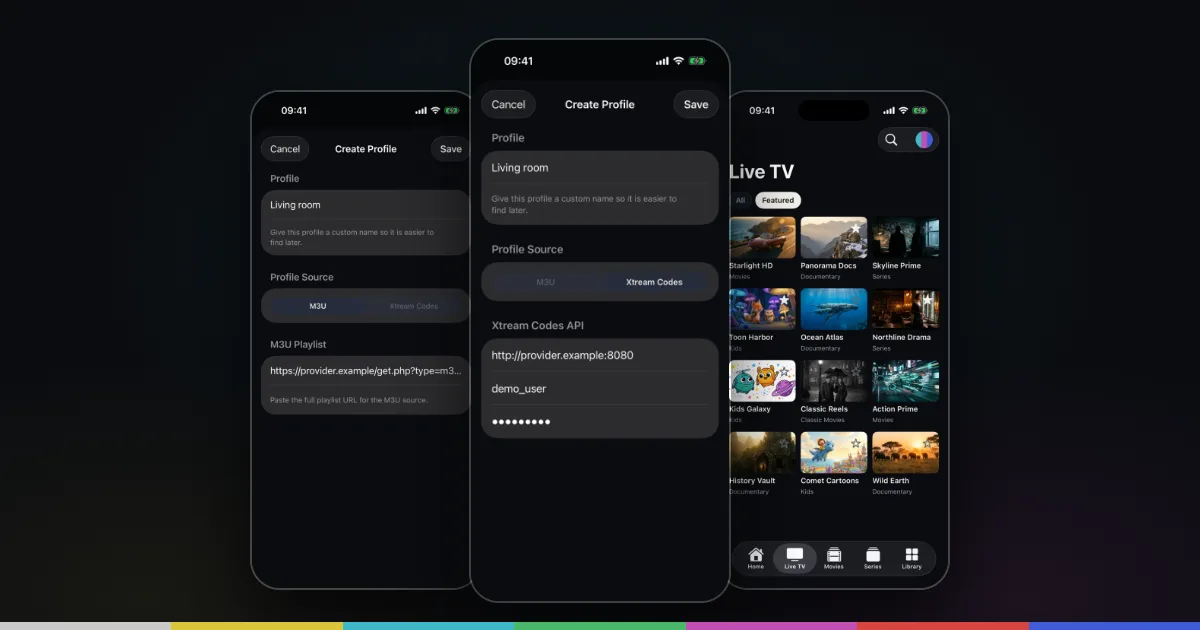
Where to find your playlists
In Smart IPTV Pro Player, every source you add, whether an M3U link or an Xtream Codes login, is saved as a profile. The app calls them playlists in its menus, and you can keep several.
There are two places to manage them:
- The playlist menu. At the top right of the main screens there is a round playlist button, labelled “Playlists and settings” for VoiceOver. Tap it to see a Playlists section with every saved playlist, plus Edit Playlist, Add Playlist and Settings.
- Settings. The Playlists section lists each playlist with its source type and a short connection summary, along with a delete button. The Playlist section above it holds Refresh Playlist and Refresh Interval.
The app is a player only. It includes no channels, playlists or IPTV service, so every playlist you manage here is a source from a provider you are authorized to use. If you haven’t added one yet, start with how to add an M3U playlist on iPhone or the Xtream Codes setup guide.
Switch between playlist profiles
To change which playlist you are watching, tap the playlist button at the top of the screen and choose a name under Playlists. The active playlist has a checkmark. Live TV, Movies, Series, Home and search switch to the content of the playlist you picked.
You can also switch in Settings: tap a playlist in the Playlists section and it becomes the active one, marked with a checkmark.
Profiles are worth using even with a single provider. Common setups include:
- an M3U link and an Xtream Codes login for the same account, so you can compare which works better on your connection
- a small everyday playlist with the categories you watch, plus the full playlist for the occasional search
- separate profiles for separate subscriptions, such as one for a family member
Favorites, watch history and Continue watching belong to the playlist they were created in, so switching playlists also switches those lists. Keeping several profiles may need a subscription; check the App Store and the purchase screen for current terms. If you are not sure whether M3U or Xtream Codes suits you better, read M3U vs Xtream Codes.
Edit a playlist when your provider changes something
Providers change things more often than you might expect. They move to a new server, change the port, reset your password or send a new link after a renewal. When that happens, your existing playlist stops loading even though nothing is wrong with the app. The fix is to edit the profile rather than delete it.
- Make the playlist you want to change the active one, using the playlist menu.
- Tap the playlist button again and choose Edit Playlist.
- For an M3U profile, replace the address in the M3U URL field with the new link. Paste the whole link in one go rather than editing parts of it by hand.
- For an Xtream Codes profile, update Host, Username or Password. The host usually includes the port, for example
http://server.example:8080. - Tap Save. The app loads the playlist again from the new details.
Editing keeps the profile itself, so you don’t lose its name or position in your list. Copy new details exactly as your provider sent them. A missing http://, an extra space at the end of a password, or https where the server only answers on http are the most common reasons an edited playlist still fails. If it does, our M3U troubleshooting guide walks through the checks.
Rename and refresh your playlists
Every playlist has a Name field. To rename one, open Edit Playlist, change the name and tap Save. A descriptive name, such as “Living room – sports” or “Provider B – films”, makes the playlist menu much easier to read when you have more than one.
Refreshing keeps the content of your playlists current. Providers add, rename and remove channels and titles, and the app picks those changes up when it reloads the playlist.
- Refresh Playlist in Settings reloads your playlists right away. Below the button, the app shows the time of the Last refresh, so you can tell whether a change from your provider has been picked up yet.
- Refresh Interval sets how often this happens automatically: 4h, 12h or 24h. On launch, the app checks the last refresh time and refreshes playlists when the interval has passed.
Choose 4h if your provider updates the list often, and 24h for a large playlist that rarely changes or if you often open the app on mobile data. Tap Refresh Playlist by hand after your provider tells you about a change, and after you edit a profile if anything looks out of date.
Delete a playlist and clean up history
To remove a playlist completely, open Settings, find it in the Playlists section and tap the delete button next to its name. The app asks “Delete Playlist?” and explains that it will remove the playlist from the app. Tap Delete to confirm, or Cancel to keep it. If you delete the active playlist, the app switches to another saved one.
Deleting removes the profile from the app, including its saved link or login. It does not cancel your subscription with your provider. If you are signed in to sync your playlists, the change is saved to your account as well; see how to sync IPTV playlists between iPhone and iPad.
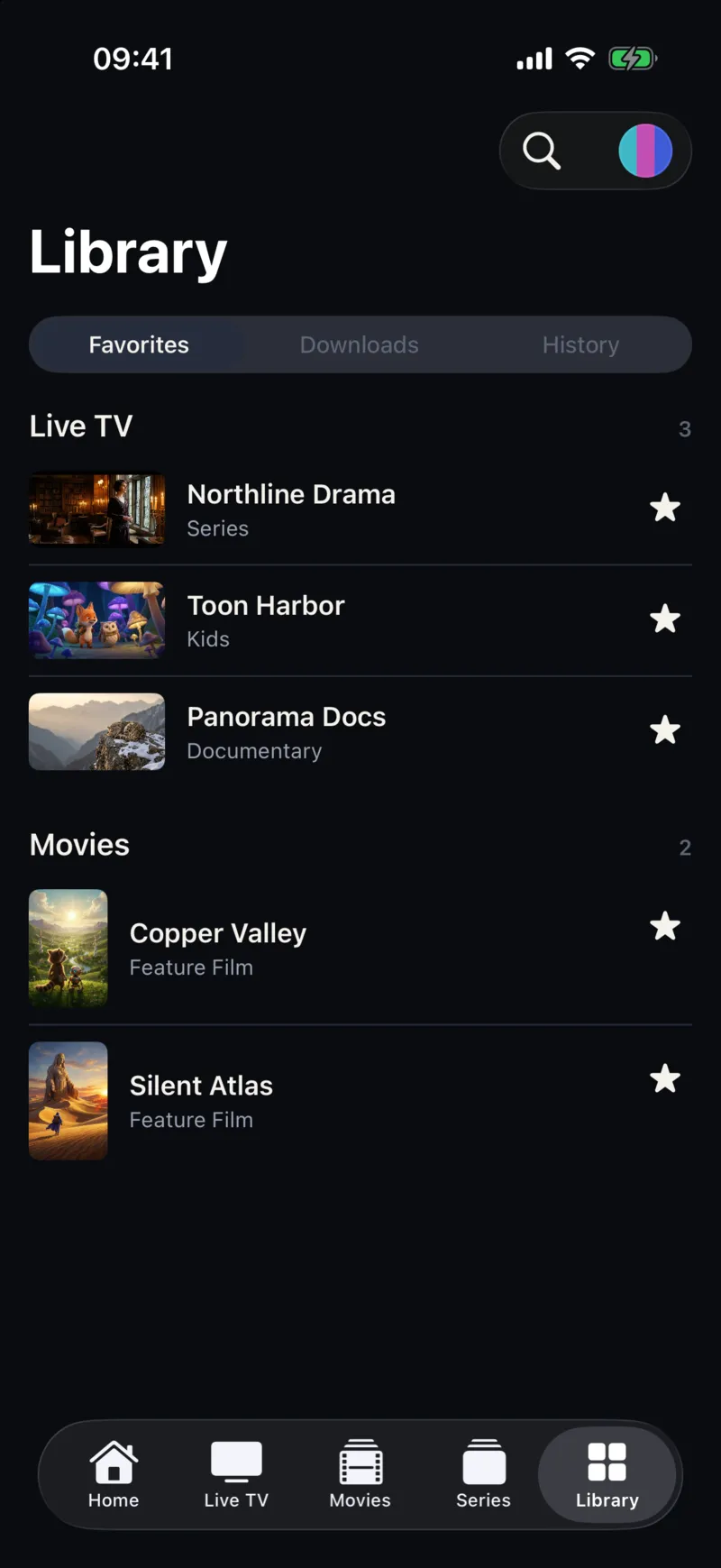
Smaller clean-ups happen in the Library. Under History, use Remove from History on a single item, for example a channel that no longer exists or something you don’t want in Continue watching, or Clear History to start fresh. Remove the star from favorites that stopped working after a provider update, then search for the new entry and star it instead.
So when should you delete and re-add rather than edit? Editing is the right choice when the same subscription moved to a new server or got a new password. Delete and add the playlist again when you switched to a different provider or account, or when a profile keeps failing after you have checked and corrected every detail. Keep in mind that a new profile starts with empty favorites and history.
Frequently asked questions
Why does my playlist stop working after my provider changed servers?
Your profile still points to the old address. Open Edit Playlist, enter the new M3U URL or Xtream Codes host and login, and tap Save.
Does deleting a playlist cancel my IPTV subscription?
No. It only removes the profile from the app. Your subscription is managed by your provider, and an app subscription is managed through your Apple ID.
Can I edit the channel list inside a playlist?
No. Channel names and groups come from your provider. Use favorites, categories and search to build your own short list, as described in how to organize a large IPTV playlist on iPhone.
Where do I get a new link or login?
Only from your provider, usually in the welcome email or customer area. The app does not supply playlists or channels. If you are unsure whether a service is legitimate, read is IPTV legal.