How to Organize a Large IPTV Playlist on iPhone
A large IPTV playlist can contain thousands of channels, films and episodes. Scrolling through all of it on a phone is slow and frustrating. This guide shows how to organize your playlist on iPhone with the tools in Smart IPTV Pro Player, so the things you watch most are always a tap or two away.
Give every source its own profile
Start with structure. In Smart IPTV Pro Player, every source you add is saved as a profile. You can keep several profiles and switch between them, which is useful if you have more than one authorized provider, more than one account with the same provider, or a separate test link.
Give each profile a clear custom name when you add it with Add Playlist, or later with Edit Playlist. A name such as “Home – sports package” or “Provider B – films” tells you at a glance what you are looking at.
Keeping sources separate has another advantage: when something stops loading, you can see which source has the problem instead of searching through one combined list. If you have not added a source yet, read how to add an M3U playlist on iPhone or the Xtream Codes setup guide.
Use Live TV, Movies, Series and categories
When a playlist loads, the app sorts its content into three sections: Live TV, Movies and Series. Choose the section first, so you are only browsing the kind of content you want right now.
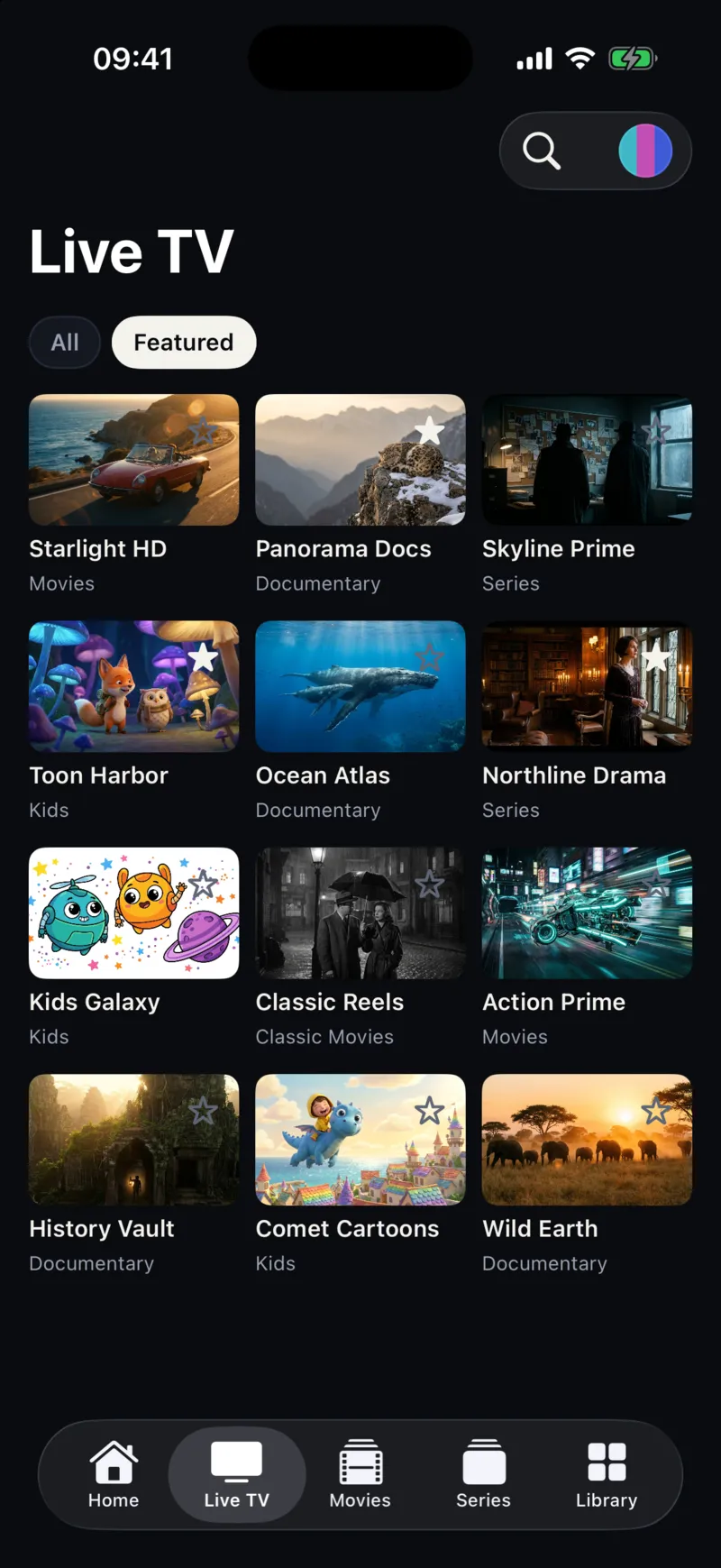
Within each section, use the Categories filter. Categories come from the groups your provider defined in the playlist, such as news, sports, kids or a particular language. Picking one category turns a list of several thousand entries into a few dozen.
A good order of work for a new playlist is: choose the section, pick a category, star what you want to keep, then move on to the next category. After one pass through the categories you care about, your favorites hold a hand-picked list, and you rarely need to open the full list again.
How useful categories are depends on how well your provider grouped the playlist. If channels are scattered or the group names are unclear, the app can only show what the source contains. In that case, the provider is the right place to ask for better grouping, or for a smaller playlist as described below.
Screen size helps as well. The same app runs on iPhone and iPad and adapts its layout to iPhone Duo, so if you are sorting through a very large playlist for the first time, a bigger screen shows more of each list at once.
The way an M3U playlist stores groups is part of the format itself. Each entry has an #EXTINF line, and providers usually add a group-title attribute there. If you want to understand the format better, see M3U on iPhone.
Build a short list with favorites and Continue watching
The single most effective way to tame a big playlist is to stop browsing it. Tap the star on any channel, movie or series to add it to your Favorites. After a week of normal use, most people find that their favorites cover nearly everything they watch.
Be deliberate about it. The first few times you open the app, spend a few minutes starring the channels you know you watch: the news channel you check in the morning, the sports channels for your teams, the series you are following. From then on, start from Favorites instead of the full list, and remove the star from anything you stop watching so the list stays short.
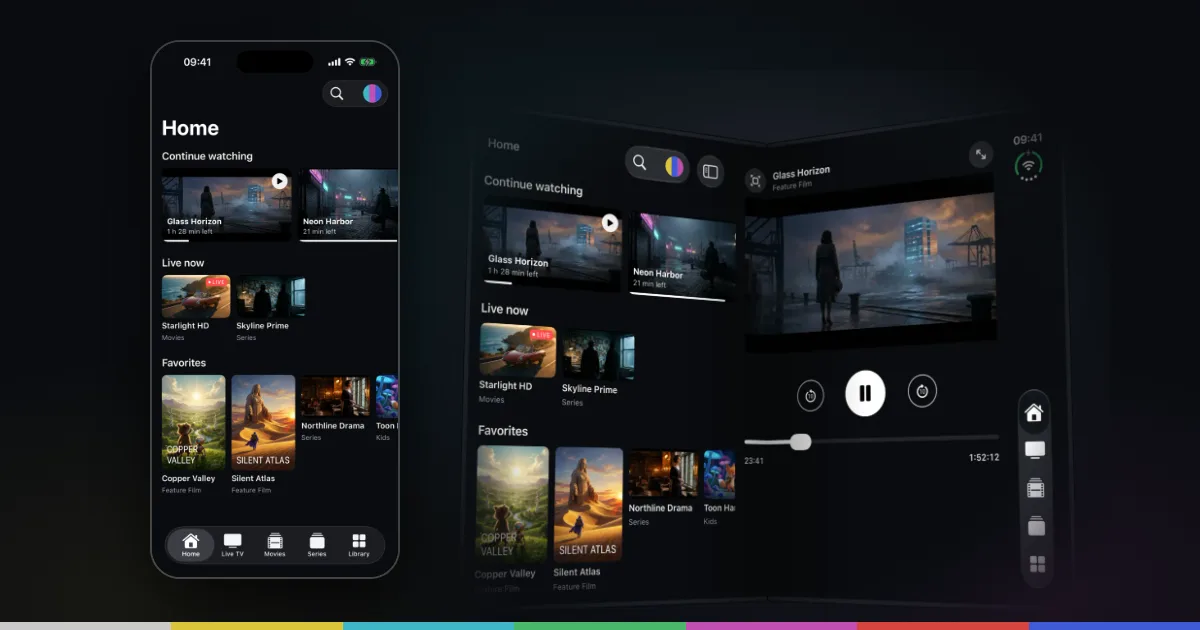
The Home screen helps too. Continue watching shows titles you started and did not finish, and Live now gives you quick access to live channels. When you reopen a movie or episode you have already started, the app asks “Continue from mm:ss?” and lets you choose Resume or Start from Beginning, so you do not have to scrub through to find your place.
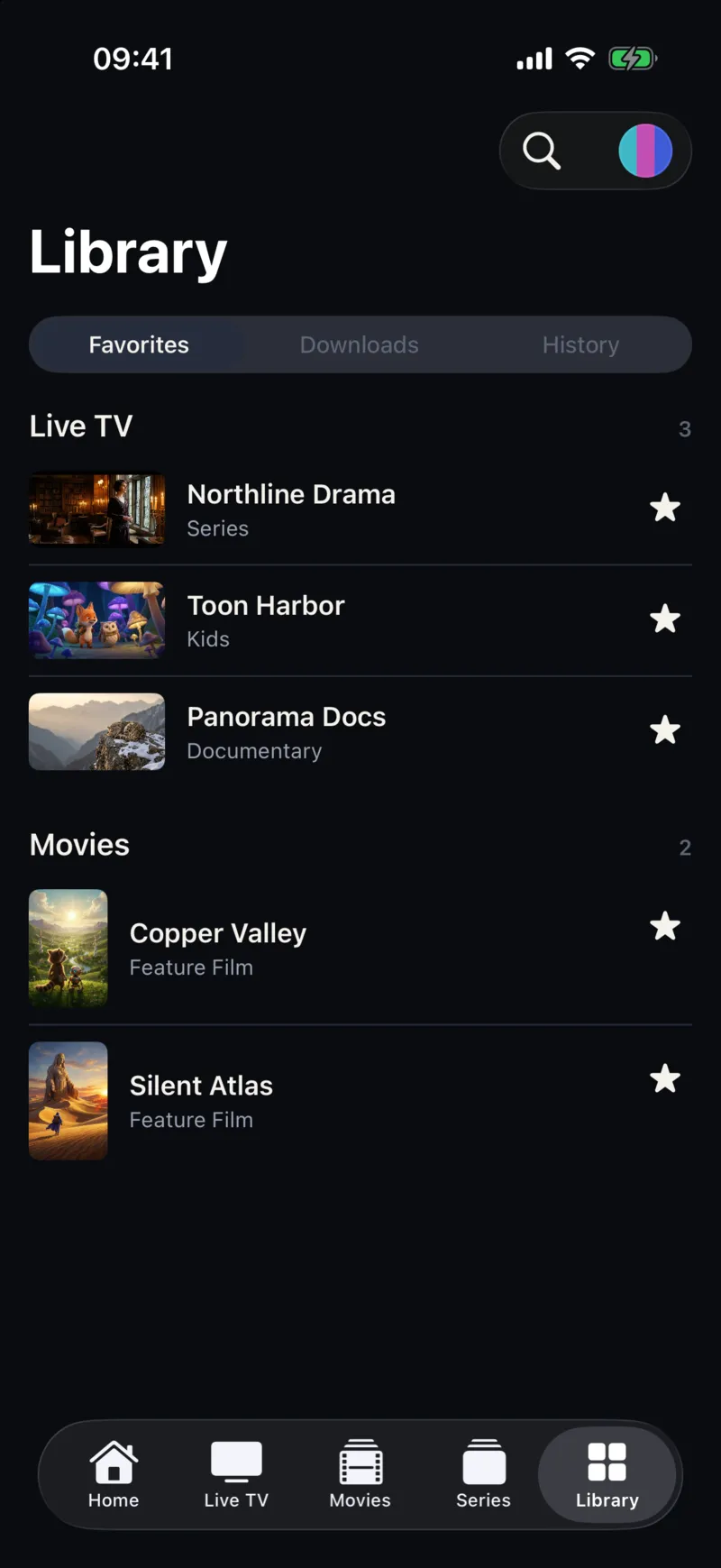
The Library brings your favorites together with your watch history and simple watch stats, including your top five channels. Watch history is useful when you want to find something you watched recently but did not star. If the history becomes cluttered, you can remove a single item with Remove from History or clear it with Clear History.
Search with the right matching mode
When you know what you want, search is faster than any filter. Search in Smart IPTV Pro Player looks across live TV, movies and series at once.
In Settings, under Search, the Title Matching option controls how your search text is compared with titles:
- Contains finds any title that includes your text anywhere. It is the better choice when you remember only part of a name, or when providers add prefixes such as country codes or quality labels to channel names.
- Exact finds titles that match your text exactly. It is useful in very large playlists where a short word appears in hundreds of titles and you already know the full name.
Start with Contains. If you regularly get too many results for searches you repeat, switch to Exact and type the full title. Short, distinctive search words usually work better than long phrases, because providers name the same channel in different ways.
Search is also the quickest way to check a favorite that stops playing after a provider update. Providers sometimes replace a channel with a new entry under a slightly different name, and the old entry may no longer work. Search for the channel by name, star the new entry if you find one, and remove the star from the old one.
Keep the playlist current and smaller at the source
Providers update their playlists. Channels are added, renamed or removed, and a list that is out of date is harder to navigate because it contains entries that no longer work. In Settings, set the Refresh Interval to 4h, 12h or 24h. On launch, the app checks when it last refreshed and reloads your playlists automatically once that interval has passed. If you know your provider just made changes, you can also tap Refresh Playlist in Settings.
Choose a shorter interval if your provider changes the list often. Choose a longer one if your playlist is very large and rarely changes, or if you often open the app on mobile data and prefer fewer full reloads.
The other way to organize a playlist is to make it smaller before it ever reaches your iPhone. Many providers let you choose packages, bouquets or categories in their customer area and then generate a link that contains only those. If you never watch most of the countries or genres in your list, ask your provider whether this is possible. A smaller playlist loads faster, refreshes faster and is much easier to browse on a phone.
A practical setup is to keep two profiles from the same provider, if your account allows it: a small everyday playlist with the categories you actually watch, and the full playlist for the occasional search. Check your provider’s connection limit first, and name the profiles clearly so you always know which one is open. If a refreshed playlist stops loading, our M3U playlist troubleshooting guide explains what to check.
Frequently asked questions
Can I rename or reorder channels inside the app?
Channel names and groups come from your provider’s playlist. Use favorites to build your own short list, and ask your provider if you want the playlist itself grouped or named differently.
Do my playlists and settings carry over to my iPad?
If you sign in with Apple or Google, your playlist profiles and preferences sync across your devices. You can also continue without an account and keep everything on one device. The same app runs on iPad.
Why are some categories empty or oddly named?
Categories reflect the groups in your source. If your provider leaves entries ungrouped or uses unclear names, the app shows them as they are. Refreshing the playlist picks up any changes the provider has made.
Does the app include a TV guide?
No. Smart IPTV Pro Player does not include an EPG or TV guide. Use favorites, categories and search to find channels quickly. Content always comes from a provider you are authorized to use; if you are unsure about a service, read is IPTV legal.