Xtream Codes iPhone Setup: How to Use Xtream Codes on iPhone
An Xtream Codes login connects your iPhone to your IPTV provider with three details: host, username and password. Here is how to format each one, set it up in Smart IPTV Pro Player and fix the errors that usually stop a login.
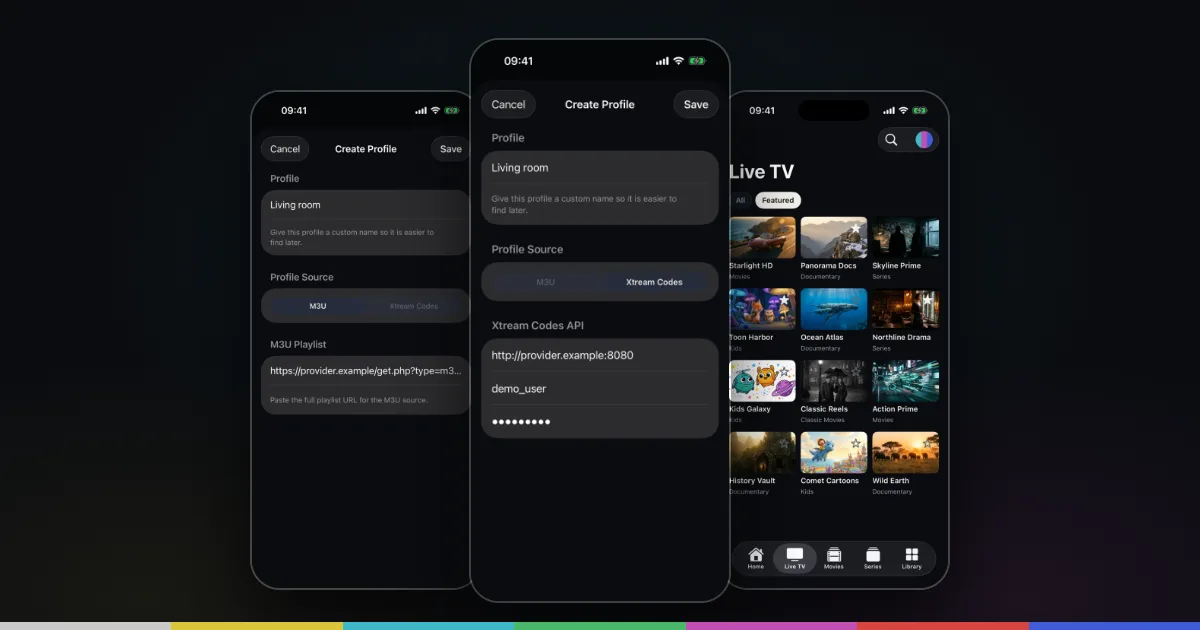
What an Xtream Codes login is
Xtream Codes started as the name of a server panel that many IPTV providers used to manage subscriptions. The panel itself is long gone as a product, but the way it lets players connect has become a common standard, and people still call it “Xtream Codes”, “Xtream API” or simply “Xtream login”.
Instead of handing you one long playlist link, the provider gives you three details, and the player asks the server for what it needs: the list of live channels, the movie catalog, the series and their episodes, each with categories. Because the server answers those requests separately, live TV, movies and series usually arrive cleanly sorted, with more information per title than a plain playlist carries.
Smart IPTV Pro Player supports Xtream Codes logins on iPhone and iPad. Like any IPTV player, it includes no channels or service of its own. The login has to come from a provider you are authorized to use; if you are unsure, read is IPTV legal first. The Xtream Codes player for iPhone page gives a quick overview of the feature.
The three details and the right host format
An Xtream Codes login always consists of:
- Host (also called server, server URL, portal or DNS): the address of the provider’s server.
- Username: the account name the provider created for you.
- Password: the password for that account, which is often different from the password you use on the provider’s website.
The host is the part people get wrong most often. A complete host has three parts:
- The scheme:
http://orhttps://. Use exactly what the provider gives you. Many IPTV servers use plainhttp://; switching tohttps://on a server that does not support it will fail, and the reverse can fail too. - The domain or IP address, for example
example-server.com. - The port, if there is one, after a colon, for example
:8080. Common values are 80, 8080, 8000 or 25461, but only your provider knows the right one.
Put together: http://example-server.com:8080. That is all that goes into Host. Leave out anything after the port, such as /get.php, /player_api.php or /c/. A trailing slash is usually harmless, but a path is not.
If the provider’s email lists the port separately, add it to the host yourself with a colon. If no port is mentioned, try the address without one; the scheme’s default port is then used.
Getting the host, username and password from an M3U link
Some providers only send an M3U link, but that link often contains a full Xtream login. A typical link looks like this:
http://example-server.com:8080/get.php?username=anna123&password=k9Xt4q&type=m3u_plus&output=ts
You can read the three details straight from it:
- Host: everything before
/get.php, sohttp://example-server.com:8080 - Username: the value after
username=up to the next&, soanna123 - Password: the value after
password=up to the next&, sok9Xt4q
Ignore type and output; they only matter for the M3U download. This works for links that use the get.php pattern. A link that ends in .m3u or .m3u8 and has no username and password in it cannot be converted. In that case, either use it as an M3U source, as described in how to add an M3U playlist on iPhone, or ask the provider whether Xtream details are available.
Be careful with values that contain special characters. If a password in a link contains sequences such as %40, that is URL encoding; %40 stands for @. When in doubt, ask the provider for the plain password rather than guessing.
How to set up Xtream Codes on iPhone, step by step
- Install the app. Download Smart IPTV Pro Player from the App Store. It needs iOS 18 or later on iPhone, or iPadOS 18 or later on iPad.
- Sign in or continue. Sign in with Apple or Google, or tap Continue without an Account. You can sign in later.
- Open the playlist form. On first launch, use Add Your Playlist in onboarding. Later, tap the round playlist button at the top of the screen and choose Add Playlist, or use Add Playlist in Settings.
- Select Xtream Codes as the source type.
- Fill in Host. Type or paste the full host, for example
http://example-server.com:8080, with the scheme and port. - Fill in Username and Password exactly as supplied. Both are usually case sensitive.
- Name the profile if the form offers a Name field, for example after the provider or the package, so you can tell it apart later.
- Tap Add Playlist or Save. The app connects to the server and loads the catalog. Large catalogs can take a little while on the first load.
Once connected, you’ll find channels under Live TV and on-demand content under Movies and Series, with the provider’s categories as filters. The Home screen fills up with Continue watching and Live now as you use it.
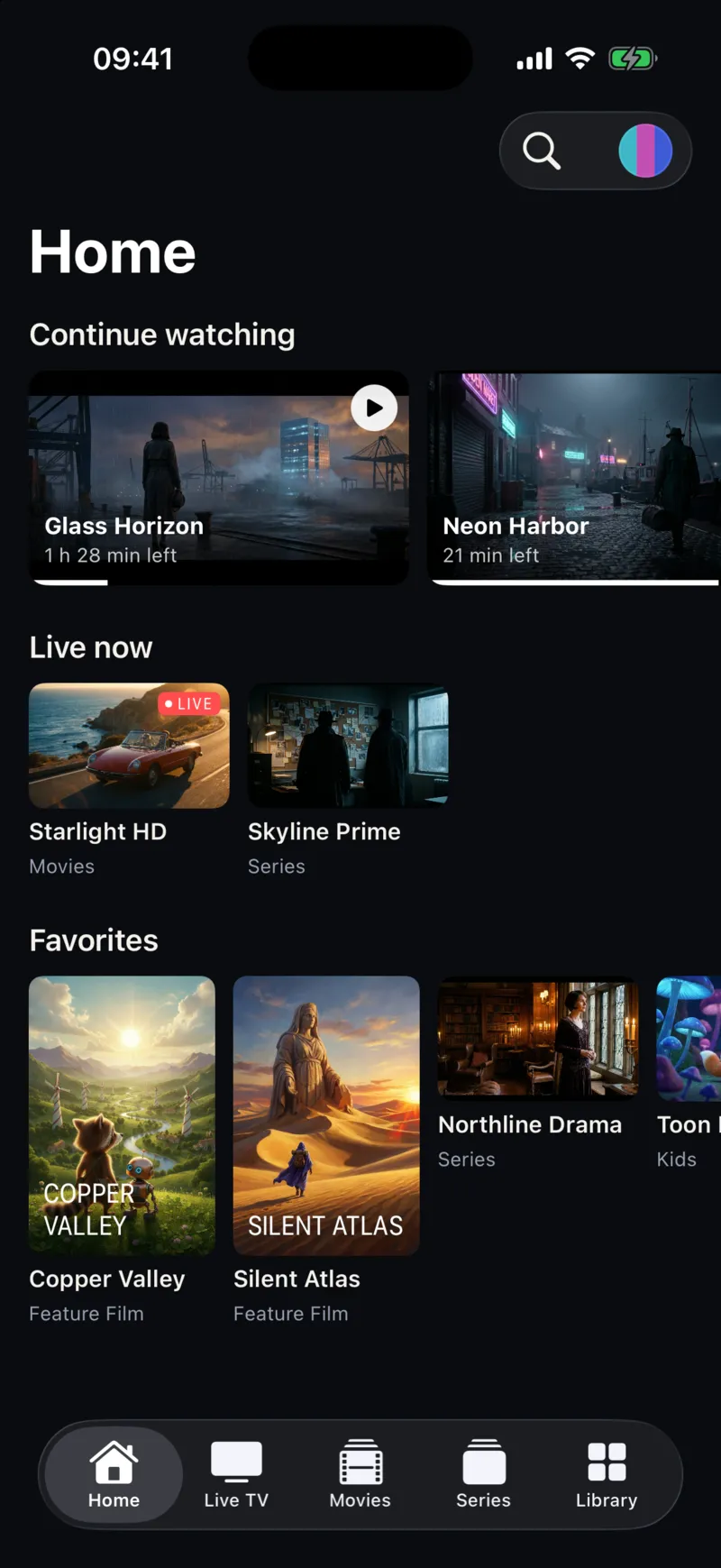
To change a detail later, for example when the provider moves you to a new server, make the profile active, open the playlist menu, choose Edit Playlist, update the field and tap Save.
Common Xtream Codes login errors
When a login fails, the cause is almost always one of the following. Work through them in order.
- Wrong or missing port. If the provider uses a port such as 8080 and you leave it out, the app reaches the wrong service on the server. Check the welcome email or the port in your M3U link.
- Wrong scheme.
https://on a server that only speakshttp://, or the other way round. Use exactly what the provider supplied. - A path in the Host field. Remove
/get.php,/player_api.phpand anything else after the port. Never paste the whole M3U link into Host. - Typos and letter case. A lowercase
land an uppercaseI, or a zero and a capital O, look alike in many fonts. Copy and paste where you can. - Trailing or leading spaces. Copying from an email often adds an invisible space at the end of the username or password. Tap into the field, move to the end and delete any extra space.
- Expired or suspended account. The server rejects logins once a subscription ends. Your provider’s customer area or support can confirm the status.
- Connection limit reached. Many accounts allow only one or two streams at the same time. If the account is in use on a TV or another phone, the login may work but playback fails, or the server may refuse the connection. Stop playback on the other devices and try again.
- Server down or moved. Providers sometimes change servers. If everything was working yesterday and nothing on your side changed, ask the provider whether the host has changed.
For playlist-side problems the M3U troubleshooting guide covers more cases, and fixing IPTV buffering on iPhone helps when channels load but stutter.
Sync, security and common questions
If you sign in with Apple or Google, your playlist profiles and preferences sync to your other iPhone and iPad signed in to the same account, so you only type the Xtream details once. That sync means the details, including your Xtream username and password, are stored with your account in Google Firebase. The privacy policy explains this in full. If you prefer to keep credentials only on one device, use Continue without an Account. If you later want to remove your account, Settings has a Delete User option.
Is Xtream Codes better than M3U?
Often, for organization: live TV, movies and series come through separately with categories. An M3U link is simpler to paste. The trade-offs are laid out in M3U vs Xtream Codes.
I used IPTV Smarters before. Are the details the same?
Yes, an Xtream login works the same way across players: the same host, username and password. The guide to moving from IPTV Smarters walks through the switch.
Can I add more than one Xtream account?
Yes. Each login is saved as its own profile, and you switch between them from the playlist menu at the top of the screen. For current subscription terms, check the App Store and the purchase screen in the app.
Who do I contact if it still does not work?
For account status, ports, servers and missing channels, contact your provider. For problems with the app itself, go to Support or email [email protected], and leave your password out of the message.