m3u vs m3u_plus: Which Playlist Type Should You Use?
If your IPTV playlist link ends in type=m3u or type=m3u_plus, that one parameter decides how much information the playlist carries. This guide explains the difference, what the output parameter does and how to change your link before adding it on iPhone or iPad.
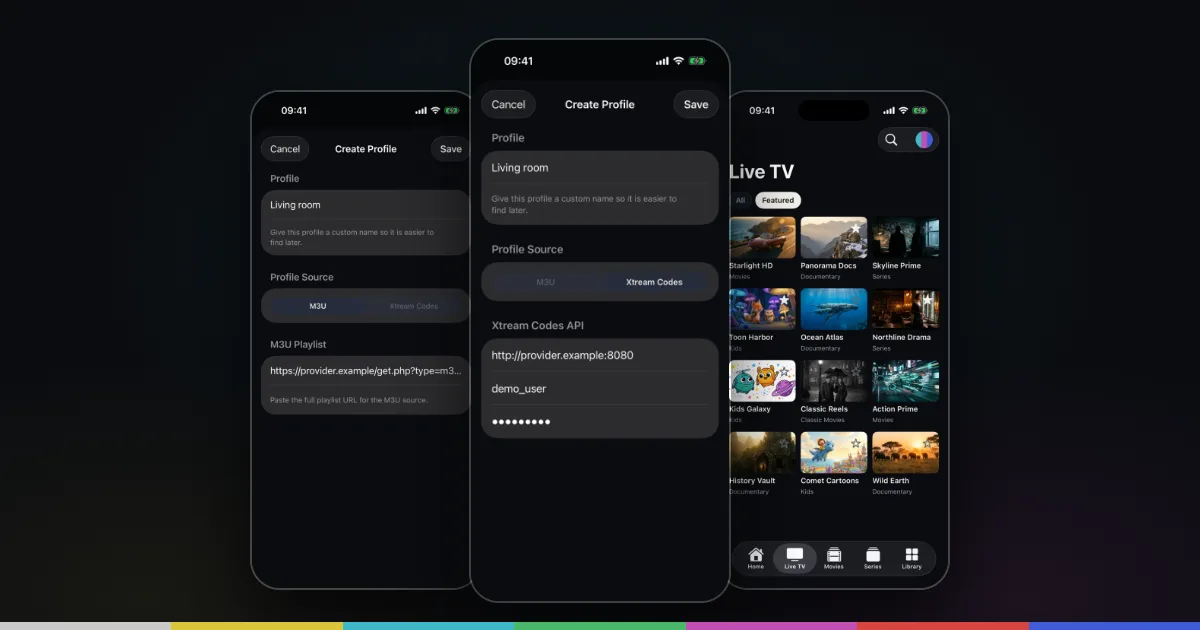
The short answer
Many IPTV providers give you a playlist link that ends with type=m3u or type=m3u_plus. Both return an M3U playlist for the same account with the same channels and titles. The difference is how much information comes with each entry.
With type=m3u_plus, panels usually add extra attributes to every entry: a logo, a group and a cleaner name. With type=m3u, the list is often bare, with little more than a name and a stream address. For a modern IPTV player, m3u_plus is usually the better choice, because those extra attributes are what turn a long list into categories with logos.
Exact behavior depends on the provider’s panel, so treat this as a strong rule of thumb rather than a guarantee. The rest of this guide explains the link, the related output parameter and how to change both.
Anatomy of a get.php playlist link
Provider panels that support the Xtream style usually generate playlist links like this:
http://example-server.com:8080/get.php?username=YOURNAME&password=YOURPASS&type=m3u_plus&output=ts
Each part has a job:
http://example-server.comis the provider’s server, and:8080is the port. Ports vary by provider, and some links have none./get.phpis the script on the panel that builds your playlist.usernameandpasswordidentify your account. They sit in the link in plain text, so treat the whole link like a password.typeselects the playlist style, such asm3uorm3u_plus.output, when present, asks for a particular stream address style, oftentsorm3u8.
Everything after the ? is a parameter, and parameters are separated by &. Their order does not usually matter, but spelling does. If you are new to the format itself, what is an M3U file explains the lines inside the playlist.
What m3u_plus adds
The extra information lives in the #EXTINF line that comes before each stream address. On many panels, a type=m3u entry looks roughly like this:
#EXTINF:-1,Example News HD
The same channel in an m3u_plus list often looks like this:
#EXTINF:-1 tvg-id="news.example" tvg-name="Example News HD" tvg-logo="https://example.com/logos/news.png" group-title="News",Example News HD
| Information | type=m3u (typical) | type=m3u_plus (typical) |
|---|---|---|
| Display name | Yes | Yes |
Logo or poster (tvg-logo) | Often missing | Usually included |
Group (group-title) | Often missing | Usually included |
Channel ID and name (tvg-id, tvg-name) | Often missing | Usually included |
| File size | Smaller | Larger |
Why does this matter in practice? A player can only build categories from groups and show artwork from logos if they are in the file. In Smart IPTV Pro Player, playlist groups become filters under Categories, and content is sorted into Live TV, Movies and Series. A bare type=m3u list will still play, but you may see one long list with no logos and few useful categories. That makes search and favorites, and the tips in organizing an IPTV playlist on iPhone, much more important.
The only real cost of m3u_plus is size. More text per entry means a larger download, so a big subscription can take a little longer to load. On a normal connection this is rarely a problem.
When basic m3u can still make sense
There are a few situations where type=m3u is worth keeping. Some older devices and simple players only need names and addresses, and a smaller file loads faster on them. If your provider’s server struggles to deliver the larger list and the download times out, the basic list may load where the extended one does not. And if you only watch a handful of live channels that you have already added to favorites, logos and groups add little.
For most people using a current iPhone or iPad, though, those benefits are small next to the convenience of categories and logos. A good habit is to keep the working link as one profile and try the other type as a second profile, then remove whichever you do not need with Delete Playlist.
output=ts vs output=m3u8
The output parameter is separate from type. It does not change the playlist’s attributes. It changes the form of the stream addresses inside it, and that can affect playback.
output=ts(sometimesmpegts) usually gives addresses that deliver a continuous MPEG transport stream, often ending in.ts.output=m3u8(some panels usehls) usually gives addresses that deliver HLS, Apple’s HTTP Live Streaming, where the stream is split into short segments listed in an.m3u8file.
Which one plays better depends on the provider, its servers and the individual stream. Some panels ignore the parameter, some only support one value, and some set a default when it is missing. There is no single right setting. If your link has no output parameter at all, the panel uses its own default, and adding one is optional.
Keep in mind that output affects the stream addresses, not the playlist itself. A type=m3u_plus&output=m3u8 link is still a normal channel list with logos and groups; only the address on the line after each entry changes. If you want to understand why the same .m3u8 ending appears in both places, the IPTV glossary explains M3U8 and HLS side by side.
A sensible approach: start with the link exactly as your provider sent it. If streams fail to start or stutter while other apps and websites work fine on the same network, try the other output value as a second profile and compare. Smart IPTV Pro Player plays common IPTV stream formats using the native iOS player together with a VLC-based engine, but no player can promise that every stream will play. For buffering that is not caused by the link, see IPTV performance tips for iPhone.
How to change the link and add it in the app
Changing the type is a small text edit. Make it carefully, because a single wrong character breaks the link.
- Copy the full playlist link from your provider’s email or customer area into the Notes app.
- Find
type=m3uand change it totype=m3u_plus. If there is notypeparameter, add&type=m3u_plusat the end. Do not touch the username or password. - Optionally, adjust
output=as described above. If unsure, leave it as it was. - Paste the edited link into Safari. If it downloads a file or shows lines starting with
#EXTINF, it works. An error page or an empty result means something is wrong, so compare it with the original. - Open Smart IPTV Pro Player, tap Add Playlist (or Add Your Playlist during onboarding), choose M3U, paste the link into M3U URL, give the profile a name and tap Save.
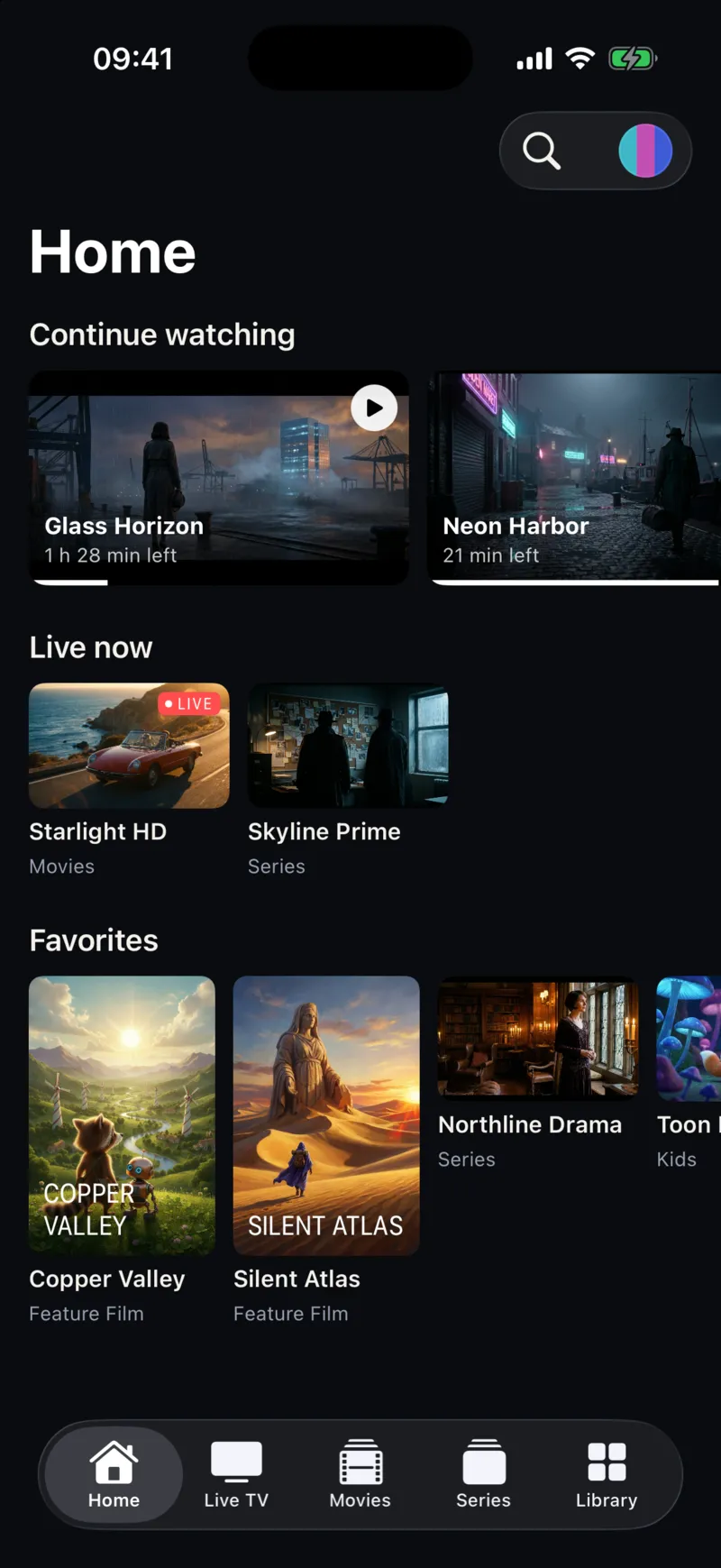
To update a playlist you already added, open the playlist menu at the top of the screen, choose Edit Playlist, replace the URL and save. Keeping the old link as a second profile until you are sure the new one works is the safest option. Some features, such as keeping more than one playlist, may need a subscription; check the purchase screen for current terms.
If your provider also offers an Xtream Codes login, that is another way to get well-organized content, with live TV, movies and series requested separately. Compare the two in M3U vs Xtream Codes or follow the Xtream Codes setup guide.
Frequently asked questions
Will m3u_plus give me more channels?
No. Both types list the same account’s content. You get more information about each entry, such as logos and groups, not more channels or titles.
My link has no type parameter. What should I do?
Some links, especially direct addresses ending in .m3u or .m3u8, are not panel links and have no parameters to change. Use them as they are. For get.php links, adding &type=m3u_plus is usually safe, but ask your provider if the result does not load.
The m3u_plus playlist does not load, but the m3u one does. Why?
The larger file may take longer than the server allows, or the provider may not support that type. Try again on a faster network, and if it still fails, use the working link and contact the provider. The M3U troubleshooting guide covers the other checks.
Does the app include a playlist I can test with?
Smart IPTV Pro Player is a player only and includes no channels or IPTV service. Onboarding offers a sample stream so you can try playback. For help with the app, visit Support or the M3U player for iPhone page.