How to Add an M3U Playlist on iPhone: Step-by-Step Guide
An M3U playlist link from your IPTV provider is all you need to watch on iPhone. This guide shows what the link looks like, how to copy it safely, how to add it in Smart IPTV Pro Player, and what to do after it loads.
What an M3U playlist link looks like
An M3U playlist is a plain text file that lists streams. Each entry has a short information line that starts with #EXTINF, which carries the channel or title name, often a logo and a group name, followed by the stream address on the next line. You rarely see that file yourself. What your provider gives you is a link to it, and that link is what you paste into an IPTV player on iPhone.
Provider links usually come in one of two shapes:
- A panel link with your login inside it, for example
http://example-server.com:8080/get.php?username=YOURNAME&password=YOURPASS&type=m3u_plus&output=ts. Thetype=m3u_pluspart asks the server for the extended format that includes group names and logos. Theoutputvalue may betsorm3u8, or missing entirely. - A direct file address ending in
.m3uor.m3u8, for examplehttps://example.com/list.m3u. Some providers host the playlist as a static file, sometimes with a long token in the path instead of a username and password.
Both kinds work the same way in the app: it downloads the text file from the link and reads the entries. What matters is that the link is complete and that it is the playlist link, not the address of a provider’s website or customer portal.
Treat this link like a password. In the get.php form it contains your username and password in plain text, so anyone who has it can use your subscription. Don’t post it in forums, screenshots or public support threads.
Where to find your M3U link and copy it without breaking it
Your IPTV provider is the only source of your playlist link. Smart IPTV Pro Player is a player: it contains no channels, playlists or IPTV service, and you add a source you are authorized to use. If you are not sure whether a service is legitimate, read is IPTV legal before you subscribe.
Most providers deliver the link in one of these places:
- the welcome or activation email you received after signing up
- the customer area or dashboard on the provider’s website, often under a heading such as playlist, M3U or devices
- a support chat or ticket reply, if you asked for an M3U link specifically
Copying is where most problems start. A playlist link is long, and a single missing character breaks it. A few habits help:
- Copy, don’t retype. Long press the link in the email or browser and choose Copy, or select the full text and copy it. Retyping a password-bearing URL by hand invites typos.
- Check both ends. The link should start with
http://orhttps://and end with the last parameter, such asoutput=ts, or with.m3uor.m3u8. Email apps sometimes wrap long links over two lines and only copy the first half. - Watch for spaces. A space before or after the URL, or a line break in the middle, is enough to make a link fail.
- Keep the ampersands. The
&characters separate the parameters. If a link was pasted through a website or chat that turned them into&or removed them, ask the provider for a fresh copy. - Use Universal Clipboard if it helps. If the link is on your Mac, copy it there and paste on your iPhone with the same Apple Account, or send it to yourself in a private note.
How to add an M3U playlist on iPhone, step by step
Install Smart IPTV Pro Player from the App Store. It runs on iPhone with iOS 18 or later and on iPad with iPadOS 18 or later. The steps are the same on both devices.
- Open the app and choose how to continue. You can sign in with Apple or Google, or tap Continue without an Account. Signing in is optional; it only matters if you want your playlists on more than one device.
- Start the setup. On first launch, onboarding shows Add Your Playlist. If you have used the app before, tap the round playlist button at the top of the screen and choose Add Playlist, or open Settings and use Add Playlist there.
- Choose M3U as the source type. The other option is Xtream Codes, which uses a host, username and password instead of one link.
- Paste the link into M3U URL. The field shows
https://example.com/list.m3uas a placeholder. Tap the field, paste, and look at the beginning and end of what you pasted. - Give the profile a name. When you add a playlist from the main app, the form has a Name field for a custom profile name. More on naming below.
- Save. Tap Add Playlist during onboarding or Save in the form. The app downloads and reads the playlist. Large lists with thousands of entries take longer, so give it a moment on a slow connection.
No link at hand yet? Onboarding offers Try a sample stream so you can see how the player works before you have your provider’s details. The M3U player for iPhone page has a short overview of what the app does with M3U sources.
Naming the profile and what happens after loading
Every source you add is saved as a profile. A clear name makes a difference once you have more than one, because the name is what you see when you switch. Useful names describe the source or its purpose: the provider’s name, “Sports package”, “Family”, or “Travel backup”. Avoid putting your username or anything secret in the name.
After the playlist loads, the app sorts the entries into three sections:
- Live TV for channels
- Movies for single on-demand titles
- Series for shows with episodes
The group names in your playlist, the group-title values on each #EXTINF line, become Categories that you can use as filters. If your provider groups channels by country or genre, you can narrow a list of thousands down to the few dozen you care about. How neatly this works depends on how the provider built the playlist. A playlist without groups shows everything in one long list, and a playlist that labels movies as channels will put them where it says they belong.
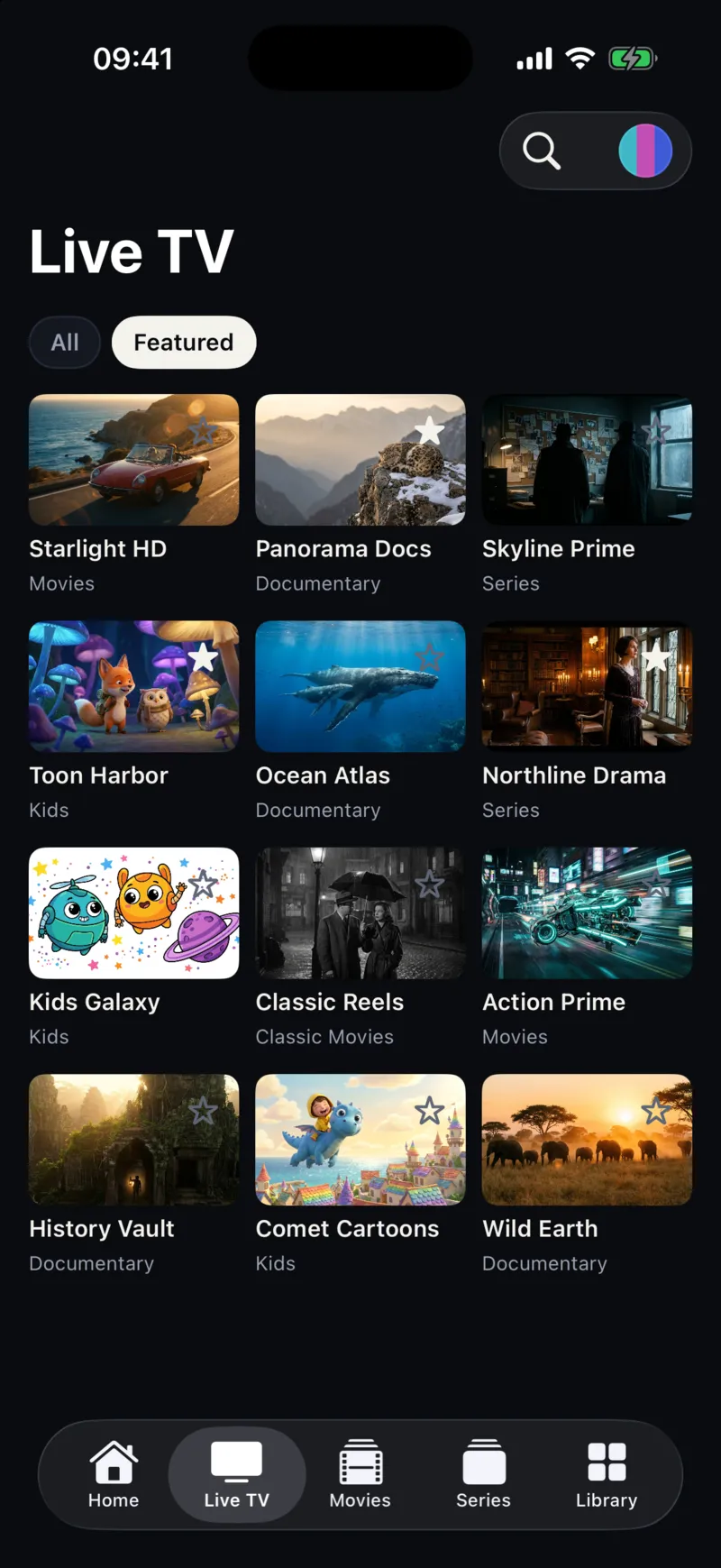
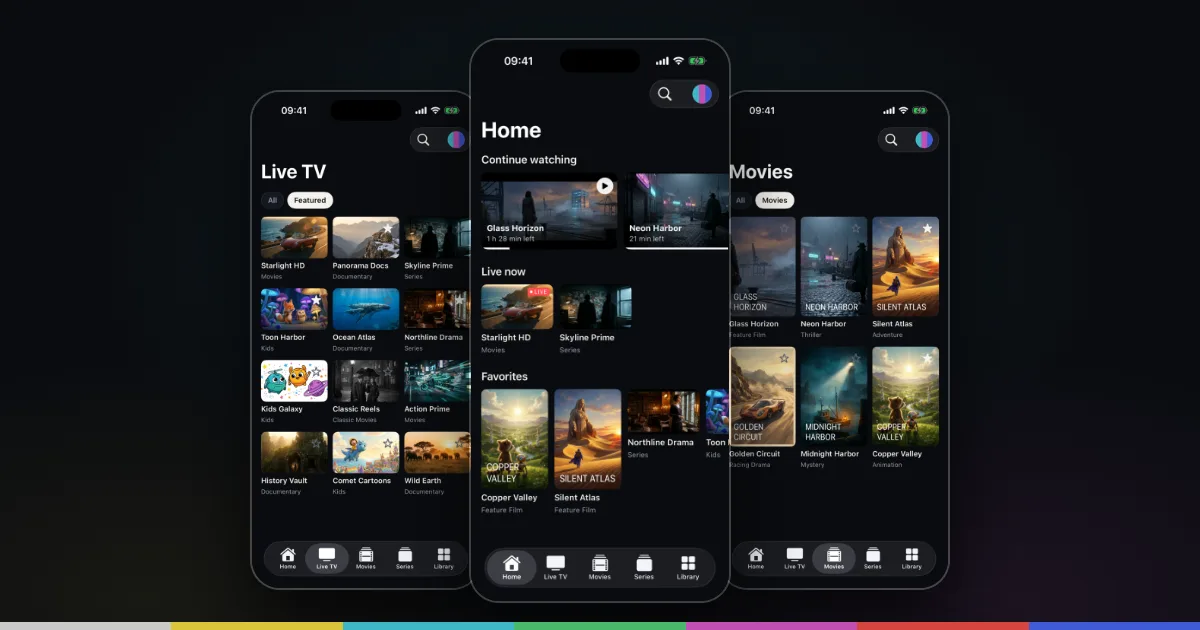
From there, tap the star on any channel, movie or series to add it to Favorites, and use search to find a title across live TV, movies and series. The Home screen shows Continue watching and Live now once you have started watching. For ways to tame a very large list, see how to organize an IPTV playlist on iPhone.
Adding a second playlist, editing and refreshing
Add another playlist
You can keep several profiles and switch between them, for example two providers, or a main service plus a separate package. Tap the playlist button at the top of the screen and choose Add Playlist, then repeat the steps above with the new link and a different name. The same menu lists your saved playlists; tap one to make it active. The app is free to download with optional in-app subscriptions; check the App Store and the purchase screen for current terms.
Edit a playlist
If your provider sends a new link, for example after a password change or a server move, you don’t have to start over. Make the playlist active, open the playlist menu and choose Edit Playlist. Replace the URL or rename the profile and tap Save. If the provider changed its channel list at the same time, some favorites may need to be added again.
Set the refresh interval
Providers add and remove channels and titles over time. Under Settings, Refresh Interval lets you choose 4 hours, 12 hours or 24 hours. When you open the app and the interval has passed, it reloads your playlists automatically. If you know the provider just changed something, use Refresh Playlist in Settings to reload now. Shorter intervals keep things current; longer ones mean fewer downloads of a large file on mobile data.
Sync across devices
If you sign in, your playlist profiles and preferences sync to your other iPhone and iPad signed in to the same account. The privacy policy explains how that data is stored. Without an account, profiles stay on the device where you added them.
Common questions and errors
Why does my M3U playlist not load on iPhone?
The usual causes are a link that was cut off or has a space in it, an expired subscription, a provider server that is temporarily down, or an account that has reached its connection limit. Copy the link again, check both ends, and try it again. The full checklist is in M3U playlist not working on iPhone. If channels load but play poorly, see fixing buffering on iPhone.
Can I import an M3U file from the Files app?
No. In the current app, M3U setup uses a URL. If your provider only gave you a file, ask them for the playlist link instead, or for Xtream Codes details.
Should I use M3U or Xtream Codes?
If your provider offers both, Xtream Codes often keeps live TV, movies and series better separated, while an M3U link is a single URL that is easy to paste. The differences are explained in M3U vs Xtream Codes, and the login route is covered in the Xtream Codes iPhone setup guide.
Where can I get help with the app?
Visit Support or email [email protected]. Describe what you see, but never include your full playlist link or password. Questions about channels, your subscription or missing content belong with your provider, since the app does not supply any of that.