How Much Data Does IPTV Use on iPhone?
Streaming live TV, movies and series over IPTV can use a lot of mobile data. This guide gives approximate figures per hour for each quality, explains why the real number depends on your provider, and shows how to measure and limit IPTV data use on your iPhone.
The short answer
IPTV on an iPhone uses roughly the same amount of data as any other video stream of the same quality. As a rough guide, one hour of watching uses:
| Quality | Typical bitrate | Approximate data per hour |
|---|---|---|
| SD (standard definition) | about 1.5–2 Mbps | about 0.7–1 GB |
| HD (720p) | about 3–6 Mbps | about 1.5–3 GB |
| Full HD (1080p) | about 6–8 Mbps | about 3 GB or more |
| 4K (2160p) | about 15–25 Mbps | about 7 GB or more |
These numbers are approximate. They come from the simple rule that a stream running at 1 megabit per second uses about 0.45 GB per hour. Your real usage can be lower or noticeably higher, depending on how your provider encodes each channel. If you watch two hours of Full HD sport a day on mobile data, that alone can come to around 180 GB a month, which is more than many mobile plans include.
Smart IPTV Pro Player is a player only. It contains no channels or IPTV service, and it plays the stream your provider sends at the quality the provider chose. The data a stream uses is decided on the provider’s side, not by the app.
Why data use depends on your provider
Every IPTV channel or movie is encoded at a certain bitrate: the amount of data per second needed to play it. Two channels both labeled “HD” can use very different amounts of data because providers make different choices:
- Bitrate and compression. A provider can encode Full HD at 5 Mbps or at 10 Mbps. Newer compression methods can deliver similar picture quality with less data, but which one a channel uses is up to the provider.
- Frame rate. Sport and live events are often sent at 50 or 60 frames per second, which usually needs more data than a 25 or 30 frames per second film channel.
- Fixed versus adaptive streams. Some streams are offered in several qualities so the player can step down on a weak connection. Many IPTV live channels are a single fixed quality, so they use the same amount of data whether you are on fast Wi‑Fi or a slow mobile signal.
- Separate quality versions. Some providers list the same channel more than once, for example with “SD”, “HD” or “FHD” in the name. Choosing the lower one is the most direct way to save data, because the player cannot make a stream smaller than the provider sends it.
Movies and series on demand follow the same rule. A film you watch in full uses the same amount of data as an hour or two of a live channel at that quality. Watching only part of a film uses only part of that data, although players normally load a little ahead of where you are watching.
If you want an exact number for a particular channel, the most reliable approach is to measure it yourself, as described in the next section, or to ask your provider which bitrates they use.
Check and limit IPTV data use in iOS Settings
iOS records how much mobile data each app uses, so you can see what IPTV actually costs you instead of guessing.
- Open Settings and tap Cellular. In some regions this is called Mobile Data, or Mobile Service on some versions.
- Scroll down to the list of apps. The number under each app shows its mobile data use for the current period.
- Find Smart IPTV Pro Player in the list to see how much it has used.
The current period usually runs from the last time the statistics were reset, not from the start of your billing month. To measure one channel, scroll to the bottom and tap Reset Statistics, watch on mobile data for a fixed time, such as 15 minutes, then check the number again and multiply. Resetting also clears the totals for all other apps, so note them first if you need them.
If you only want to watch on Wi‑Fi, turn off the switch next to the app in the same list. iOS will then block the app from using mobile data, and streams will only play when you are connected to Wi‑Fi. You can switch it back on at any time.
Low Data Mode
Low Data Mode asks iOS and apps to reduce network use, for example by pausing automatic updates and background tasks. You can turn it on for mobile data under Settings → Cellular → Cellular Data Options (on 5G models, under Data Mode), and for an individual Wi‑Fi network by tapping the info button next to it under Settings → Wi‑Fi. The exact wording can differ by iPhone model, carrier and iOS version.
Low Data Mode is useful to keep the rest of your iPhone quiet while you watch, but don’t rely on it to shrink an IPTV stream. A fixed‑quality live channel still needs its full bitrate to play smoothly, and if the network can’t deliver it, you will see buffering rather than a smaller picture.
Wi‑Fi Assist
At the bottom of the Cellular settings, Wi‑Fi Assist lets your iPhone switch to mobile data when the Wi‑Fi signal is poor. That is helpful for browsing, but during a long stream on weak Wi‑Fi it can quietly move a lot of video onto your mobile plan. If you have a tight data allowance, consider turning it off.
Practical tips to use less data
- Watch on Wi‑Fi whenever you can. Home and office Wi‑Fi usually have no meaningful cap, and a stable Wi‑Fi connection also tends to buffer less. See IPTV performance tips for iPhone if streams stutter.
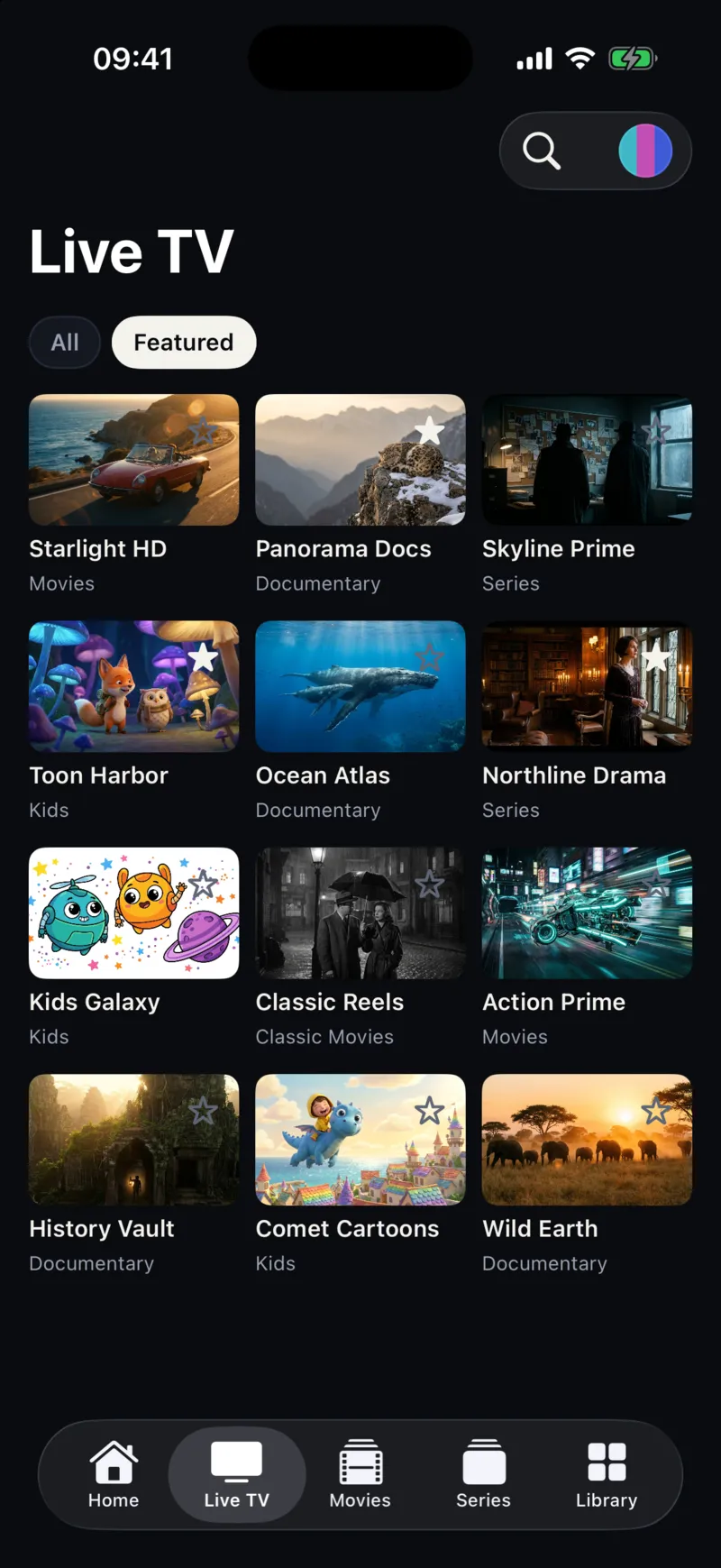
- Pick lower‑quality versions on mobile data. If your provider lists SD and HD versions of a channel, use the SD one when you are away from Wi‑Fi. Marking your usual low‑data channels with the star in the app makes them easy to find in Favorites; organizing an IPTV playlist on iPhone has more ideas.
- Stop playback instead of leaving it running. A live channel playing on a screen nobody is looking at uses data the whole time. Pause or close the player when you step away.
- Keep the phone screen in mind. On a 6‑inch screen, the difference between HD and Full HD is often small, while the difference in data can be large.
- Check your plan’s fine print. Some mobile plans limit video speed or count streaming differently. Your carrier can tell you what applies to your plan.
Playlist refreshes also use data
Streams are not the only thing that uses data. When the app loads your source, it downloads the list of channels, movies and series. A small M3U playlist may be well under a megabyte, while a large provider playlist with a big on‑demand catalog can be tens of megabytes. With an Xtream Codes login, the app asks the server for separate lists of live channels, movies and series, which can also add up for a large account.
Smart IPTV Pro Player refreshes your playlists automatically when you open the app and the chosen interval has passed. You set the interval in Settings → Refresh Interval: 4, 12 or 24 hours. If you mostly use mobile data, 24 hours means fewer full downloads. When you know your provider has changed something, you can still use Refresh Playlist in Settings to reload right away; it shows the Last refresh time so you can see when the list was last updated.
If you keep several profiles, the same applies to each source you use. Deleting profiles you no longer need keeps things simpler; see managing IPTV playlists on iPhone. The difference between the two source types is explained in M3U vs Xtream Codes.
Watching IPTV when you travel
Travel is where data use gets expensive. Roaming plans and travel eSIMs often come with small allowances, and an evening of HD streaming can use a whole package. Hotel Wi‑Fi is usually free of caps but can be slow or shared with many guests, which leads to buffering rather than extra cost.
Before you rely on IPTV abroad, check your roaming allowance, find out whether the hotel Wi‑Fi is fast enough for HD, and make sure your provider allows use from the country you are visiting. The IPTV travel guide for iPhone covers hotel networks, roaming and provider restrictions in more detail.
Frequently asked questions
Does the app have its own data quality setting?
No. Smart IPTV Pro Player plays the stream your provider sends. To use less data, choose lower‑quality channel versions if your provider offers them, or watch on Wi‑Fi. The app itself downloads only the stream you are playing and your playlist when it refreshes.
Why did IPTV use more data than the table shows?
Your provider may use a higher bitrate than the typical values, particularly for sport at 50 or 60 frames per second or for 4K. Playlist refreshes, several profiles and streams left playing in the background of your day all add to the total. Measure one channel with Reset Statistics to see your real figure.
Can I stop the app from using mobile data completely?
Yes. In Settings → Cellular (or Mobile Data), turn off the switch next to Smart IPTV Pro Player. The app will then only stream over Wi‑Fi.
Is watching on Personal Hotspot or a travel router different?
The stream uses the same amount of data, but it counts against the phone or SIM that provides the connection. Hotspot use may also have its own limit on your plan. For setup questions, visit Support or read the M3U player for iPhone page.