How to Sync IPTV Playlists Between iPhone and iPad
Typing a long playlist link or an Xtream Codes password twice is tedious, especially on a phone. If you watch on both iPhone and iPad, you can add your playlist once and have it appear on the other device. This guide explains how sync works in Smart IPTV Pro Player, what it covers, what it does not, and how to stay in control of your data.
How sync works in Smart IPTV Pro Player
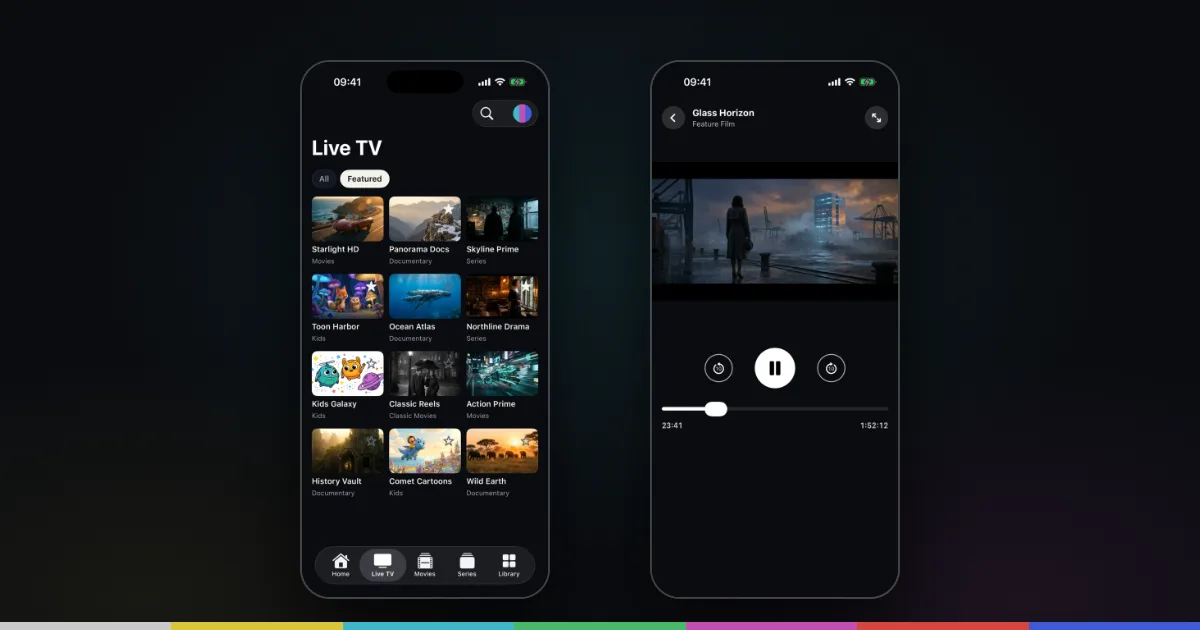
Smart IPTV Pro Player is one universal app for iPhone and iPad. When you sign in with an account, the app saves your playlist profiles and your preferences to that account. Sign in with the same account on another device and the same profiles and preferences appear there, so you don’t have to add your sources again.
Sync is optional. The first time you open the app, the welcome screen says “Sign in to sync your playlists and preferences across devices.” You can sign in with Apple or with Google, or tap Continue without an Account and use the app on a single device.
Keep in mind what is being synced. The app is a player only and includes no channels, playlists or IPTV service. What travels between your devices is the information you entered: the link or login for a source from a provider you are authorized to use, plus a few settings. The channels themselves still come from your provider every time you watch.
Set up sync on iPhone and iPad
Setting up sync takes a few minutes. Start on the device where your playlists already work.
- Sign in on your first device. On the welcome screen, choose Apple or Google. If you chose Continue without an Account earlier, Settings shows you as Guest under Account; tap Sign Out there to return to the welcome screen and sign in.
- Add or check your playlists. Make sure each source is saved as a profile with a clear name. If you have not added one yet, follow how to add an M3U playlist on iPhone or the Xtream Codes setup guide.
- Install the app on the second device. Download Smart IPTV Pro Player from the App Store on your iPad or other iPhone. It requires iOS 18.0 or iPadOS 18.0 or later.
- Sign in with the same account. Use the same method you used on the first device. Signing in with Google on one device and Apple on the other can leave you with two separate accounts that don’t share profiles.
- Open your playlist. Your profiles appear in the playlist menu at the top of the screen. Pick one and the app loads its channels, movies and series from your provider.
If a profile appears but its content does not load, the problem is usually the source rather than sync: an expired subscription, a changed server address or a connection limit. Our M3U troubleshooting guide covers the common causes.
What syncs and what stays on each device
Sync covers the parts of the app that take effort to set up. When you are signed in, these are saved to your account:
- Playlist profiles: the custom name, the source type (M3U or Xtream Codes) and the details you entered, meaning the M3U URL, or the Host, Username and Password of an Xtream Codes login.
- Preferences: settings such as which playlist is active, the Title Matching mode for search and the Refresh Interval.
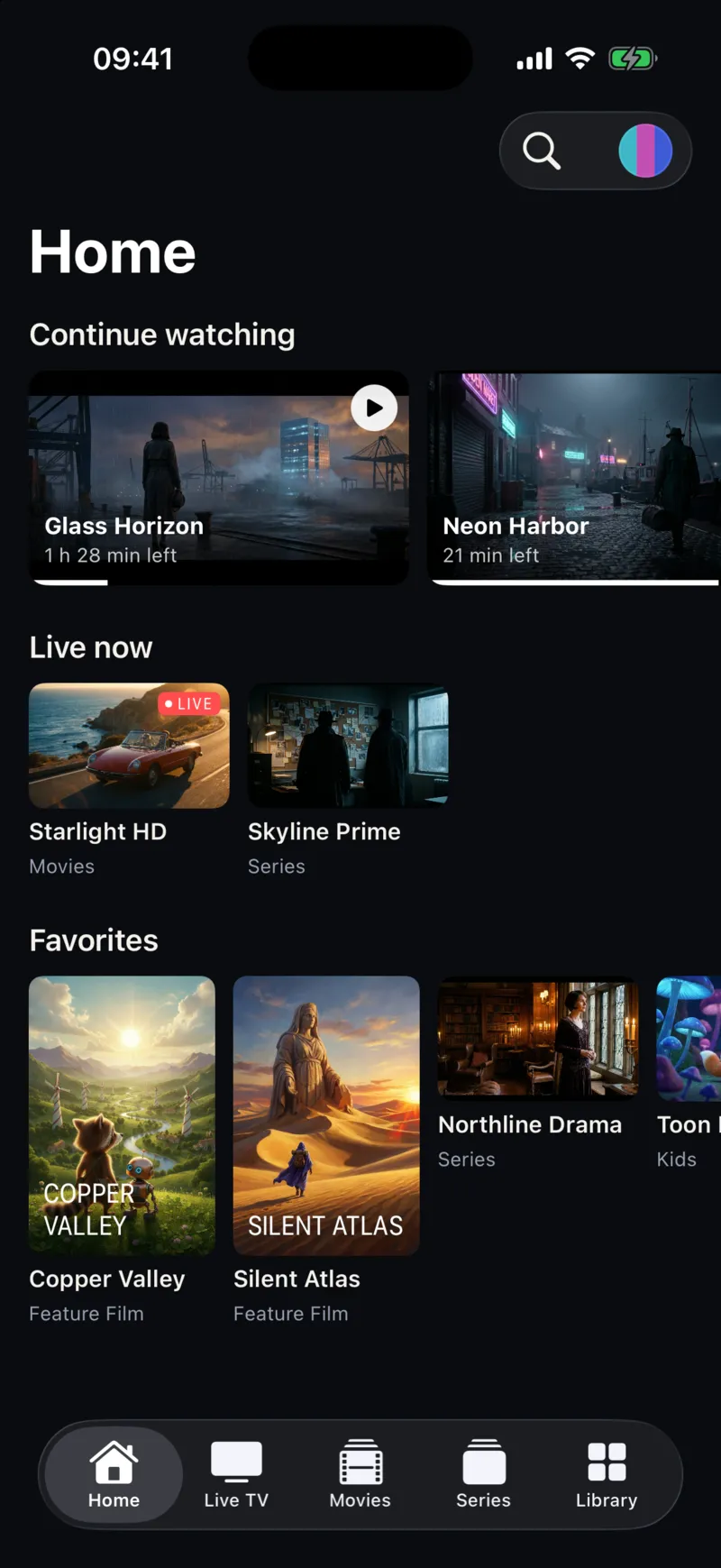
Other things are tied to the device you use. In the current version, your Favorites, watch history, resume positions and watch stats are kept on the device where they were created. If you star a channel on your iPhone, star it on your iPad as well. This is also why Continue watching can look different on each device.
Playlist content is never copied between devices. Each device downloads the playlist from your provider and refreshes it on its own schedule, using the Refresh Interval in Settings. If your provider changed something, open Settings and tap Refresh Playlist on each device.
A synced profile also does not change what your provider allows. Most IPTV services limit how many devices or streams can be connected at the same time. Having the same profile on an iPhone and an iPad is not a problem in itself, but watching on both at once usually counts as two connections. If you see a message about the maximum number of connections, read what to do when IPTV max connections are reached, and check your plan with your provider.
Using the app without an account
You don’t need an account to use Smart IPTV Pro Player. Tap Continue without an Account on the welcome screen and the app works on that device as usual: add playlists, browse Live TV, Movies and Series, save favorites and change settings.
Without an account, your playlist profiles and preferences stay on the device and are not synced. That has two consequences worth knowing:
- On a second iPhone or an iPad, you add your sources again by hand.
- If you delete the app or replace your phone, the profiles you saved in it are not restored automatically. Keep your provider’s link or login details somewhere safe, such as a password manager, so you can add them again.
Many people choose this route on a shared family iPad or when they prefer to keep login details off any server. It is a reasonable choice, and you can sign in later if you change your mind by signing out of the Guest session in Settings.
Subscriptions are separate from sign-in. If you bought a subscription in the app, use Restore on the purchase screen on another device signed in to the same Apple ID. Some features need a subscription; check the App Store and the purchase screen for current terms.
Privacy, signing out and Delete User
Synced data is stored with Google Firebase. That includes your playlist profiles, which means the M3U URL and, for Xtream Codes profiles, the host, username and password. An M3U link often contains a username and password as well. Treat these details like any other password, and read our privacy policy for what is stored, why and for how long. If you would rather keep these details on your device only, use the app without an account.
You manage your account in Settings under Account, which shows how you are signed in.
- Sign Out signs this device out of your account and returns you to the welcome screen, where you can sign in again, use a different account or continue without one.
- Delete User removes your signed-in user from authentication after you confirm. For security, the app may ask you to sign in again before it can delete the account. If you have questions about the data stored with your account, contact support.
It is also good practice to change the password with your provider if you ever suspect that your playlist link or Xtream login was shared. After the provider changes it, update the profile on one signed-in device and check that the change appears on the other.
Frequently asked questions
Do favorites and watch history sync between iPhone and iPad?
No. In the current version, sync covers playlist profiles and preferences. Favorites, watch history and resume positions stay on the device where you created them.
Can I use one account on several iPhones and iPads?
Yes. Sign in with the same Apple or Google account on each device to see the same playlist profiles. How many devices can stream at the same time depends on your IPTV provider’s plan.
Why don’t my playlists appear on my iPad?
Check that both devices are signed in with the same method and account, not Apple on one and Google on the other. Profiles added while you were using the app without an account are not synced. For help with the iPad app itself, see IPTV on iPad.
Does syncing give me channels on the new device?
No. Sync copies your saved profiles and settings. The app includes no channels or IPTV service, and content always comes from a provider you are authorized to use.